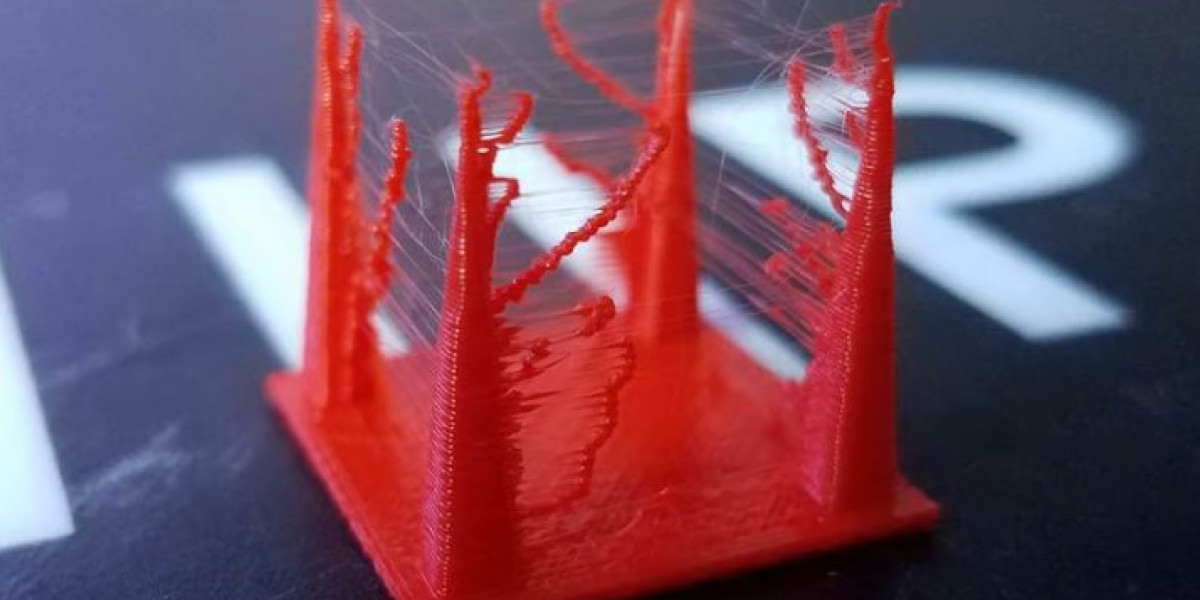

As an FDM printer’s nozzle travels across an open space to get to the next point, it may sometimes ooze melted plastic, which then solidifies and sticks to the printed parts. This is 3D printer stringing, and it leaves your 3D printed parts with thin strands of plastic that resemble cobwebs or strands of hair. In theory, your nozzle shouldn’t deposit plastic as it travels through open air (otherwise known as a travel move). However, molten plastic will often leak onto parts where it shouldn’t, leaving your prints with what looks like “whiskers”. The leading causes of stringing in FDM printers are using incorrect retraction settings and setting the hot end temperature too high. PETG, for example, requires relatively high temperatures for melting and is notorious for stringing. PLA and ABS, however, are also known to have this issue. Luckily, there are some ways of preventing 3D printer stringing. In this article, we’ll take a look at five simple solutions. Let’s get started!
Enable Retraction
Enabling retraction is the most common method used to combat 3D printer stringing. Enabling retraction means that, where the printhead has to cross a space, the filament will be pulled back – just a little bit – by the feeder. This prevents the molten plastic from trailing behind during the travel move because the “pulling back” action serves as a countermeasure against oozing. Once the printhead has arrived at the next location, the filament is pushed back out, and printing resumes from the nozzle again. In most slicing applications, like Cura, retraction is usually enabled by default. However, it’s always a good idea to confirm that this is true, especially when you start experiencing stringing. If the retraction setting is turned on and there’s still stringing on your prints, you may then need to go into the nitty-gritty of the retraction settings.
Retraction Speed
The retraction speed determines how quickly the 3D printer filament is retracted. A faster retraction speed suggests that 3D printer stringing is less likely to occur because the filament is pulled back fast enough before it starts oozing. However, when the retraction speed is too fast, it may cause the filament to disconnect from the other portion inside the nozzle. Worse, a quick movement of the drive gear may grind the molten plastic and jam the nozzle or create areas where the filament is not deposited.
Therefore, you should aim to find a sweet spot (between slow and fast), where retraction is optimal. This sweet spot may vary depending on the printing material. Perform a few test prints to determine the ideal retraction speed.
Also, specific slicers may be helpful in dialing in the right settings. For example, Simplify3D comes with pre-configured profiles that are a great place to start if you’re looking for a retraction speed that works best.
What Settings Should You Use?
To determine the optimal retraction values, you must first know the extruder you’ll be using and the material you’ll be printing with.
Materials like ABS and PLA typically do well with a speed of 40 to 60 mm/s and a retraction distance of 0.5 to 1.0 mm on direct extruders. On the other hand, Bowden extruders will generally require a speed of 30 to 50 mm/s, with a retraction distance of around 2.0 mm. These figures aren’t constant and can change based on many variables.
Some slicer programs, like Simplify3D, come with “coast” and “wipe” parameters that are powerful tools for further dialing in your retraction values. As the name suggests, wiping moves the nozzle against the outer wall to wipe off leftover plastic, while coasting shuts off the extruder for the last few millimeters of the print line to decrease pressure buildup and prevent blobs or zits.
In Cura, the “Retraction Minimum Travel” setting prevents retraction from occurring unless the printhead is traveling a certain distance. This acts as a precaution against filament grinding. Another setting to consider is “Combing Mode“, which controls the printer’s travel moves to avoid unnecessary retractions. All retraction settings can be found in the “Travel” dropdown in Cura.
At the end of the day, when retraction is done correctly, it’ll put a stop to stringing and give you more control over your prints.